Workflow
Add Node → Compose → Workflow
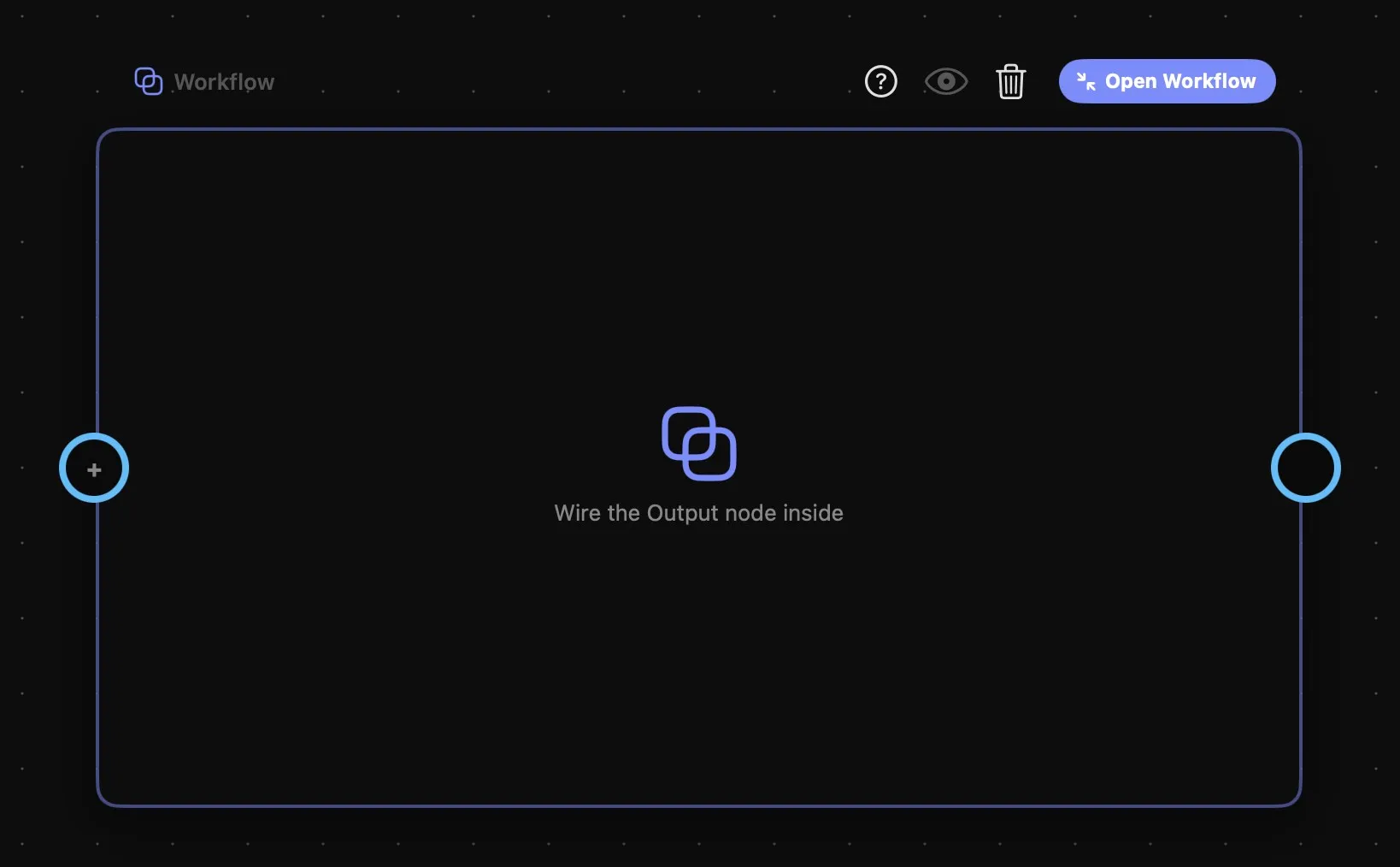
A whole flow inside one card. From the outside it looks and behaves like an ordinary card: input rings on the left, an output ring for every way out on the right, and it shows whatever the graph inside produced. Open it, and you’re on a canvas of your own with the whole app available on it.
It’s the answer to a graph that has outgrown its screen, and a tidy way to reuse a recipe. Once a chain of eight cards has become “the bit that makes the product shot”, it stops being eight cards you read and becomes one thing you use — so fold it away behind a single card, name it, and wire it up like any other.
There’s deliberately no Generate button here. A Workflow doesn’t run, it contains: you generate inside it, on the real generator cards, and this card shows whatever came out.
What’s on the card
| Area | What it does |
|---|---|
| Above the card | The name — a greyed Workflow until you rename it; double-click it to do so — then help, Preview, delete and the violet Open Workflow button. |
| The card | What comes out. With one output it’s the picture, the clip with its player, the prompt’s text or a sound; with several, a grid with one numbered cell per output. Until then it reads Wire the Output node inside. |
| 1P | The inputs, one ring per input, coloured by what each carries. A prompt input reads P, the others their number. |
| + | Add Input. It has no kind of its own — drop any wire on it and an input is born to match. |
| Outputs | On the right, one ring per Workflow Output card inside, each taking the colour of what it carries — so one Workflow can hand out a picture, a clip and a prompt at the same time. They’re numbered when there’s more than one. Hover a ring for its name. |
Outputs are typed one at a time, so a Workflow plugs into anything that accepts what that particular ring carries: the picture into an Upscale, the prompt into an Image card’s prompt ring, the clip into whatever takes a video. They’re named, too — Output 1, Output 2 and so on until you rename them, and that name is what you see hovering the ring. There’s more on rings in How nodes connect.
Opening and closing
- Open it with a double-click, the Open Workflow button, or Arrange › Open Workflow (⌘↓).
- Inside, the bar at the top shows where you are, with a step for each level you can click, and Close Workflow. File › Close Workflow is ⌘↑.
Making one
Two ways, and the second is the one you’ll use.
From scratch — add it from Add Node → Compose → Workflow. You get an empty Workflow with one Workflow Output waiting inside and no inputs at all: those turn up as you drop wires on the card’s + ring.
From what you’ve already built — select the cards and choose Create Workflow from Selection, from the right-click menu or the Arrange menu. The selection moves inside, its own wiring untouched, everything that crossed the boundary is rewired to the new card’s rings, and the canvas takes you inside the new Workflow.
That last part is worth knowing, because it works in both directions:
- In: each card outside that was feeding the selection becomes one input, however many wires it sent in.
- Out: each card outside that was reading from the selection gets a Workflow Output of its own, already wired — and so does each selected card that wasn’t feeding anything, on the reasoning that it’s where you were finishing. A note tells you when it made more than one.
Inside
Opening a Workflow replaces the canvas with the level inside it. It’s a full canvas: add any card, generate, wire things up, even open another Workflow nested in this one.
Two kinds of card mark the boundary:
- Workflow Input — one per input, with a padlock, standing in for whatever is plugged into that ring from outside. Wire it into your graph as if it were the media itself. It can’t be deleted; click the padlock to go back up a level.
- Workflow Output — a way out. Whatever you wire into one is what that ring carries on the outside, and the card shows it right there, so you can see what’s leaving without going up a level.
The two grow from opposite sides, which is the thing to hold on to. Inputs grow from the outside: drop a wire on the card’s + ring and the input appears, with its Workflow Input card seated inside. Unplug the wire and both go away again.
Outputs grow from the inside. Workflow Output is the one boundary card you add yourself — Add Node → Compose → Workflow Output, which only turns up while you’re inside a Workflow. Its ring appears on the outside as soon as you add it, and takes the kind of whatever you wire in. Double-click its name to rename it, and that’s the name you’ll find hovering the ring outside.
Outputs you no longer need can be deleted like any other card — all but the last: a Workflow always keeps at least one.
A generation started inside keeps running whether or not you’re looking at it. Close the Workflow, go back to the main canvas, do something else — the card outside shows the progress, and the result lands when it lands.
Unfolding one
Right-click a Workflow and choose Decompose Workflow, and it unfolds back onto the canvas it was standing on: the contents keep their layout and their own wiring, and only the boundary is rewritten. Whatever was feeding an input from outside now feeds the cards inside directly, and everything that was reading a ring now reads the card that actually produced what came off it. The cards that come out are left selected.
Workflow or Frame?
Two ways of putting cards together, and they’re not interchangeable:
- A Frame draws a titled area behind a section of canvas. Purely visual — the cards stay where they are and stay visible.
- A Workflow folds a whole graph away behind one card, boundary and all. Reach for it when you no longer want to look at the inside.